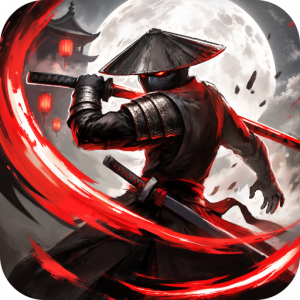
Shadow Fight 3 is Nekki’s online 3D fighting RPG with story chapters, equipment sets, clans, events and raids. This Philippine guide links only to Nekki, Google Play and Apple’s App Store. WP Phone does not host an APK, private server, bot, modified client, free-gem tool or account sale.
Version 1.46.1 and current store status
Apple’s live Philippines lookup metadata listed version 1.46.1, released 16 October 2026 UTC. Its notes cite technical improvements and bug fixes. Google Play Philippines listed an Android update date of 8 October 2026. Different platform dates are normal; use the build offered to the signed-in device.
On Android, confirm package com.nekki.shadowfight3 and developer NEKKI. On Apple devices, confirm provider Nekki Limited and App Store ID 964827011. Shadow Fight 2 and Shadow Fight 4: Arena are separate games with separate progress.
Requirements and storage
Apple Philippines requires iOS or iPadOS 15.0 or later. Google Play did not state one universal Android minimum on the public listing reviewed here, so the signed-in Play Store page is the final compatibility check for the exact phone.
Apple reported a 450,728,960-byte package, about 429.9 MiB. Keep more room for downloaded resources, progress, event data, cache, advertisements and temporary update files. The installed footprint can be larger than the store package.
A stable connection is part of the requirement
Nekki’s Google Play description says Shadow Fight 3 is an online game and requires a stable internet connection. Do not plan on story, duels or events working in airplane mode. A fast speed test is not enough if the connection changes between Wi-Fi and mobile data or has high packet loss.
For large updates, use trusted Wi-Fi, pause other downloads and keep enough free storage. For battles, avoid switching networks mid-session. Do not install a modified “offline” build or private server; it is not the same account or service.
Save the correct account before moving phones
Nekki’s support pages say Android progress uses Google Play Games and iOS progress uses Game Center when linked correctly. Its current cross-platform transfer article describes an in-game transfer code and previous account ID, says the old device is reset after transfer, limits transfers to once every 30 days, and warns that an active subscription does not transfer.
- Open Settings and confirm the intended platform account and current game ID.
- Keep both devices available and update both official clients first.
- Read Nekki’s live transfer instructions before generating a code.
- Enter the code only on the target device and verify the server and account ID.
- Do not share the transfer code; anyone with the required details may attempt to move progress.
Because the source device is reset, a transfer is not a casual login test. Wait for any subscription period Nekki says will not transfer, and contact official support if the server or account differs.
Install the official online client
- Open Nekki’s site or the Philippine store link from this page.
- Match NEKKI, the package name or App Store ID.
- Review the current age label, chat, advertising, loot-box and purchase notices.
- Keep Play Protect and normal installation protections enabled.
- Reject an auto-fight, damage, currency or graphics helper asking for special access.
A bot, account seller or “support agent” does not need a password, email code, Game Center approval, Google authorization or transfer code. Use in-game or Nekki Help Center support.
Purchases, subscriptions and performance
The current listings identify ads, optional purchases and random items; Apple also lists a monthly Shadow Pass. Check the live renewal terms, active account and peso total before approving. Deleting the app does not necessarily cancel a platform subscription.
If the game stutters, let a hot phone cool, close screen recording and lower official graphics settings before trying a third-party booster. A compatible device can still slow during effects-heavy fights. For disconnects, compare stable Wi-Fi and mobile data without changing networks during a battle.
See WP Phone’s new-phone transfer guide and frame-pacing checklist.
Editorial review: 17 October 2026. Recheck the live build, connection, linked account, transfer rules and subscription status before deleting or moving progress.
Official sources checked
- Shadow Fight 3 official site
- Shadow Fight 3 Philippines App Store listing
- Apple Philippines lookup metadata for Shadow Fight 3
- Shadow Fight 3 Google Play Philippines listing
- Nekki Support: save and restore Shadow Fight 3 on Android
- Nekki Support: transfer Shadow Fight 3 progress
Install from the official source
- Open the store. Use the Google Play or App Store button above for your device.
- Confirm the publisher. Match the store publisher with the developer shown on this page, and check the device requirements.
- Install and update. Use the store's Install or Update button; allow the download to finish before opening the game.
Google Play and the App Store do not require enabling “Unknown Sources.” If a publisher offers a direct Android APK, read our installation safety guide before considering it.