
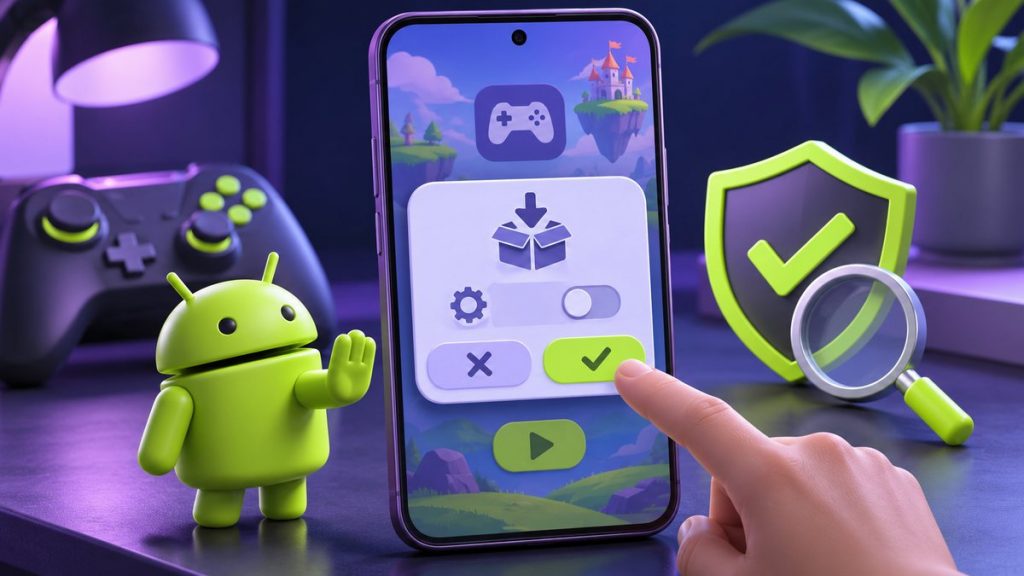
A game link, browser, file manager or messaging app may send an Android user to Install unknown apps and ask for Allow from this source. That switch gives the selected source app permission to request installation of software outside its normal store flow. For an ordinary game available on Google Play, stop and use the official store instead.
The permission belongs to the source app
On current Android versions, this is not one global “trust every APK” switch. It is granted to the app opening the package, such as a browser, file manager or chat app. If Chrome asks, the permission applies to packages Chrome opens; if a file manager asks, it applies there. A game already installed from Google Play normally does not need another app to receive this permission just to update itself.
Google’s Pixel guidance warns that apps from unknown sources can put the phone and personal information at risk. It also shows that the permission can be turned off later under Apps, Special app access and Install unknown apps. Menu names vary by phone maker.
Common game-related red flags
- A page promises unlimited coins, free premium items, an unlocked frame rate or removed ads.
- A chat contact sends an APK and says Play Protect must be disabled.
- A “booster” asks for unknown-app installation plus Accessibility, overlay, VPN or device-admin control.
- The package uses a familiar icon but a different developer or package name.
- An installer claims an official store build must be removed before its version can be installed.
These are reasons to stop, not troubleshooting steps. Removing the signed official game can also risk local saves and make account recovery harder.
Use a deny-first checklist
- Cancel the install. Do not approve the switch while a message, call or countdown is pressuring you.
- Find the official game page. Start from the developer’s verified website or search inside Google Play.
- Match the identity. Compare the developer, exact title and Android package name with an official source.
- Check availability. A missing listing may mean device, age, account or region restrictions; an APK mirror does not safely remove those limits.
- Keep protection enabled. Google recommends leaving Play Protect on.
- Protect saves first. Confirm account recovery before uninstalling or changing editions.
What Play Protect does
Google says Play Protect checks Play Store apps before download, scans the device for potentially harmful apps from other sources, warns about harmful or deceptive behavior and may block, disable or remove a harmful app. It can also recommend a code-level scan for an unknown external app.
A person telling you to switch Play Protect off is asking you to remove a safety layer. Do not do that for a mod, private server, graphics unlocker, top-up helper or account recovery tool. If Play Protect produces a warning, return to the official developer or store rather than searching for a bypass.
Revoke permission you no longer need
Open Settings and search for Install unknown apps, or look under Apps and Special app access. Open the browser, file manager or messaging app involved and turn off Allow from this source. Review every listed source, especially one enabled after following a game ad or chat link.
Revoking this special access does not uninstall games already on the phone. It prevents that source app from opening a new outside-store package installation. If the menu is managed by Family Link, a work profile or another administrator, do not try to bypass the restriction; ask the responsible adult or administrator.
If you already installed a suspicious package
- Disconnect from the suspicious site or chat and revoke unknown-app installation for the source.
- Uninstall the suspect app and run Google Play Protect.
- Review Accessibility, overlay, notification, VPN and device-admin access for unfamiliar apps.
- If credentials were entered, change the game and email passwords through their official services.
- Review store receipts, linked accounts and recovery methods for unfamiliar changes.
Do not upload the APK to a random “scanner” that asks for personal data. If a legitimate work or school app must be installed outside Google Play, follow the organization’s written IT instructions and verify the domain and support contact independently.
Do not confuse future verification rules with a game requirement
Android’s current developer-verification help describes a phased program beginning in September 2026 in Brazil, Indonesia, Singapore and Thailand, with broader rollout planned later. That does not make a Philippine game ad, APK mirror or chat installer official. The correct test remains the developer’s verified distribution route and the exact signed package.
For related checks, see WP Phone’s Android installation safety guide, Play Protect certification guide and profile, certificate and VPN warning guide.
Editorial review: 16 October 2026. Menu names and verification rollout can vary by Android version, manufacturer, account and country.