
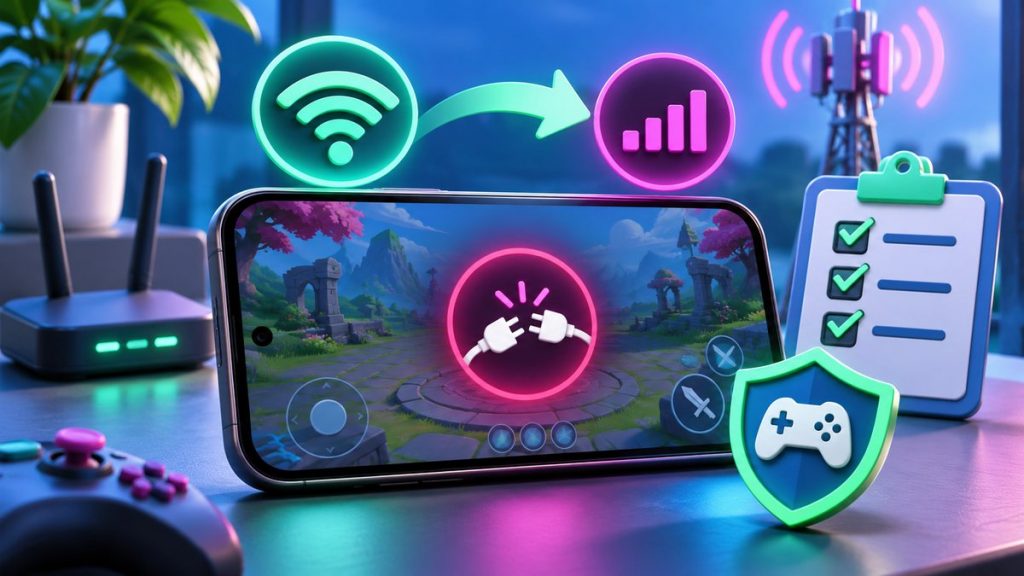
A phone can keep showing an internet connection while a real-time game loses its session during a move from Wi-Fi to mobile data. The two networks have different paths and often different addresses; not every game resumes a live match smoothly after a change. Check network stability before joining a ranked or timed match.
Choose one stable route for the match
- Test the Wi-Fi near the place where you will play, especially if you plan to move between rooms or away from the router.
- If Wi-Fi is weak and your prepaid data is sufficient, consider using mobile data from the start rather than switching mid-match. Check the phone’s per-app cellular-data permission and your data balance.
- Pause downloads and large uploads on the same connection. If another device is saturating the router, the game may lag even though a speed test looks acceptable.
- If a disconnect happens, wait for the game’s official reconnect option. Avoid repeatedly signing in on another device while the match is active.
On Android, Google’s connection checks suggest testing Wi-Fi and mobile data separately. On iPhone, Apple’s Wi-Fi Assist guidance explains that some foreground apps can switch to cellular when Wi-Fi is poor; behaviour varies by app and may use more data. Neither setting can guarantee that a particular game will preserve an active match.
If disconnects recur on only one game, record the time, server region and connection type, then consult that game’s official status page or support. Avoid a third-party “ping booster” that asks for a VPN or account credentials without a clear reason.