
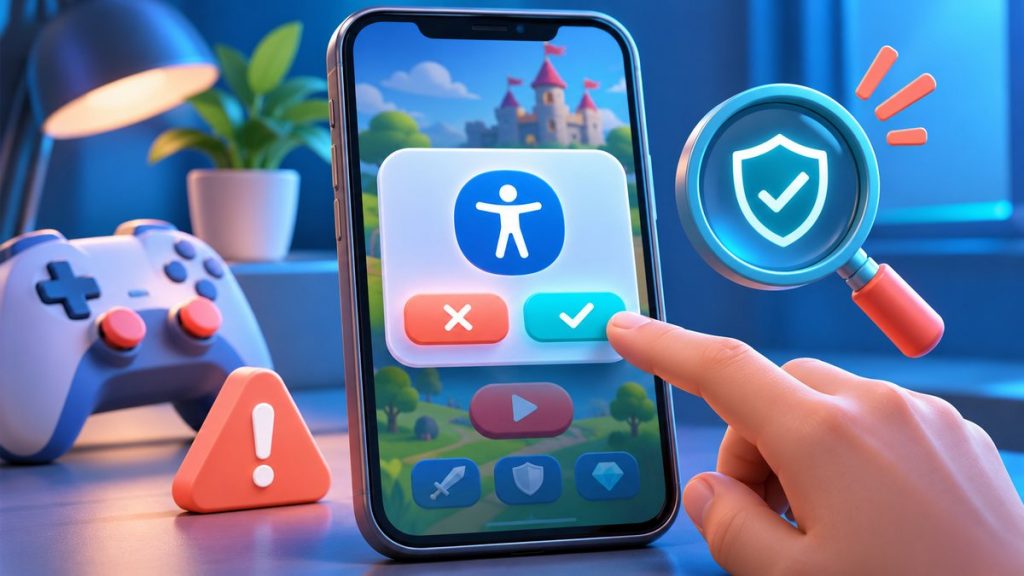
Android Accessibility features are essential for many people: screen readers, voice control, switch access and other assistive tools can make a phone usable. The same system access is also powerful. Google explains that an enabled accessibility service may read on-screen content and interact with apps on the user’s behalf.
If a mobile game, reward helper, performance booster, auto-clicker or account fixer asks you to enable Accessibility, pause before agreeing. The request is not automatically malicious, but it should match a clear feature from a developer you trust.
What the setting can do
Accessibility is not an ordinary permission such as camera or microphone access. Depending on the service, it can observe the interface, read text on the screen and perform actions. That may be necessary for TalkBack, Voice Access or a well-explained assistive tool. It is unusual for the core gameplay of most games.
Google Play requires Accessibility API use to be documented. Apps that are not genuine accessibility tools must show a prominent in-app disclosure, explain what data is accessed and why, and obtain affirmative consent. A vague message such as “required for optimization” is not enough to make the purpose clear.
Five checks before enabling access
- Identify the requester. In Android Settings, read the exact app and service name. Do not approve a similarly named helper by mistake.
- Match it to a feature. The reason should be narrow and understandable. A screen reader or switch controller has an obvious purpose; free coins or reduced ping does not.
- Verify the developer. Open the app from Google Play or the developer’s official site, compare the provider and read the Data safety and support sections.
- Read the disclosure. It should appear before the request and say what the service observes or controls and how that information is used.
- Check alternatives. A game may provide its own captions, text size, color, controller or touch settings without giving another app broad system access.
Restricted settings are a warning to slow down
Android may restrict sensitive settings for an app installed from outside a trusted store. Google says these settings can expose personal data and recommends allowing them only when the developer is trusted. Do not follow a video that tells you to bypass the block for an APK promising skins, automation or account recovery.
An unexpected message, pressure to act quickly, spelling errors, a promise that sounds too good to be true or a request to change unrelated security settings are strong reasons to stop. Find the game’s real website or official store page independently rather than using the link in the message.
If you already enabled it
- Open Settings → Accessibility. Names vary by phone, so use Settings search if needed.
- Turn off the service you no longer trust or use.
- Remove the related app through Settings or the official store.
- Run Google Play Protect and install available Android security updates.
- Review important game, email and payment accounts for unfamiliar activity.
- Change a compromised password from a trusted device and sign out unknown sessions. Do not reuse the old password.
If the app resists removal, changes settings again or controls the screen, stop entering passwords or payment details. Disconnect from the network if necessary and use the phone manufacturer’s official support instructions. Avoid downloading a second “cleaner” from the same sender.
Accessibility for players who need it
Do not disable a legitimate assistive service merely because Accessibility access is powerful. Confirm that it is the intended Google, manufacturer or trusted accessibility app, then keep it enabled if it is needed. The goal is informed consent and a minimal set of trusted services, not removing accessibility.
Game developers can also offer captions, remappable controls, readable text, high-contrast indicators and reduced motion inside the game. If an official title lacks an important feature, contact its developer rather than relying on an unknown overlay.
Safe installation rule
Install the game from its official Google Play page or the developer’s own verified store route. A mod, macro or account tool should not get sensitive system access merely because it uses the game’s logo. Our device-compatibility checklist explains what to do when the official store blocks an install.
Editorial review: 5 October 2026. Android menus and policy wording can change; use the current device help and Google Play listing before enabling a sensitive service.