
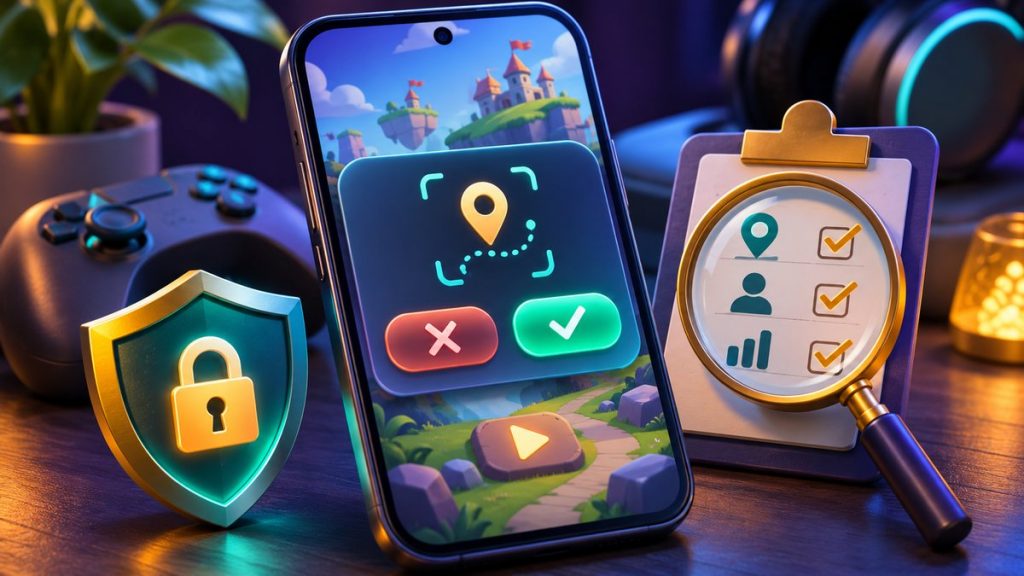
A mobile game may ask to track activity across other companies’ apps and websites, usually for advertising or measurement. That request is separate from signing in, saving progress or installing a normal update. You can pause and review it before choosing.
What the iPhone tracking prompt means
Apple says apps must ask permission before tracking you or your iPhone across apps and websites owned by other companies for advertising or sharing information with data brokers. You can choose Ask App Not to Track and continue using the app, then review the choice later under Settings > Privacy & Security > Tracking.
Denying tracking is not the same as deleting a game account, turning off all ads or blocking every type of analytics. The App Store’s App Privacy section and the developer’s privacy policy describe additional declared data practices. Read those before installation and again after a major policy change.
Android uses different controls
Android does not present the same Apple tracking prompt. Google Play’s Data safety section lets the developer describe data collection, sharing, purposes and security practices. Google notes that practices can vary by app version, use, region and age, so treat the listing as a starting point rather than a guarantee about every screen.
Android’s ad-privacy controls are under the device’s Google settings on supported phones. Google says users can manage personalized ads and reset or delete advertising identifiers. Changing those controls may alter ad personalization; it does not buy an ad-free version or erase a game’s account data.
A safe decision checklist
- Confirm the prompt belongs to the game you intentionally opened.
- Read the short reason shown in the prompt, then compare it with the official store privacy information.
- If the reason is unclear, deny or postpone the request and test the game’s core functions.
- Do not install a second app, profile, VPN or certificate to enable rewards or ads.
- Recheck the setting later if the game’s behavior or privacy policy changes.
A reward wall, chat message or support agent should never need your Apple or Google password, one-time code or remote control of the phone. Close the page if a tracking choice leads to an unrelated download or payment request.
For a child’s device
Make the tracking choice together, not after a child has tapped through the prompt. Review the age rating, advertisements, purchases and privacy details in the official store. Platform family controls can restrict apps and purchases, but parents should still look at the actual ads and in-game links because those can change over time.
If you already allowed tracking
On iPhone, return to Settings > Privacy & Security > Tracking and change the individual game’s permission. On Android, review the device’s ad-privacy settings and the game’s own privacy choices. You can also review app permissions separately; tracking controls do not replace checks for location, microphone, camera or contacts.
Use WP Phone’s mobile game permission checklist for the broader review, and the camera and microphone guide for feature-specific prompts.
Editorial review: 11 October 2026. Menu names can differ by device maker and operating-system version; use the current official help page for your phone.