
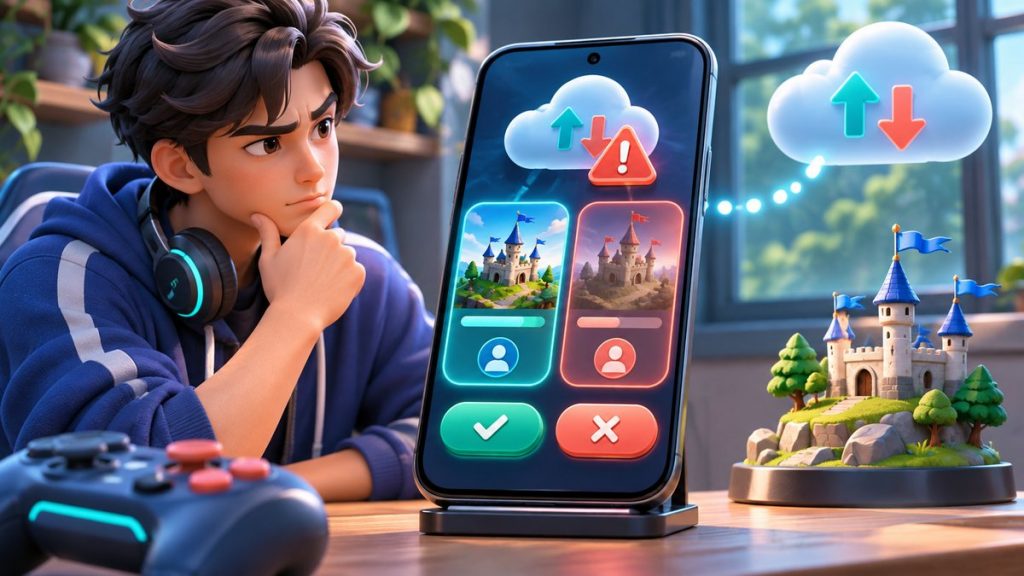
A cloud-save conflict can appear after playing on two devices or using a game while offline. The prompt may offer a local version and an online version, but the newest timestamp alone may not tell the whole story. Stop tapping through the warning until you understand which progress you want to keep.
Protect the right save
- Take a screenshot of the conflict prompt without sharing private account information. Note the level, currency balance or last completed chapter on each device.
- Check that both devices are signed into the same official game account. A different store account can point to a different save.
- Compare the displayed timestamps and progress summaries. If the game does not explain what will be overwritten, read its official help page before choosing.
- Keep both devices online, but avoid launching more sessions that might create another competing save.
- If the choice is unclear, contact the game’s official support with the screenshot and device details before selecting a version.
Do not install a third-party save editor or send login codes to someone offering recovery. After selecting the correct save, verify progress on one device before opening the game on the other.