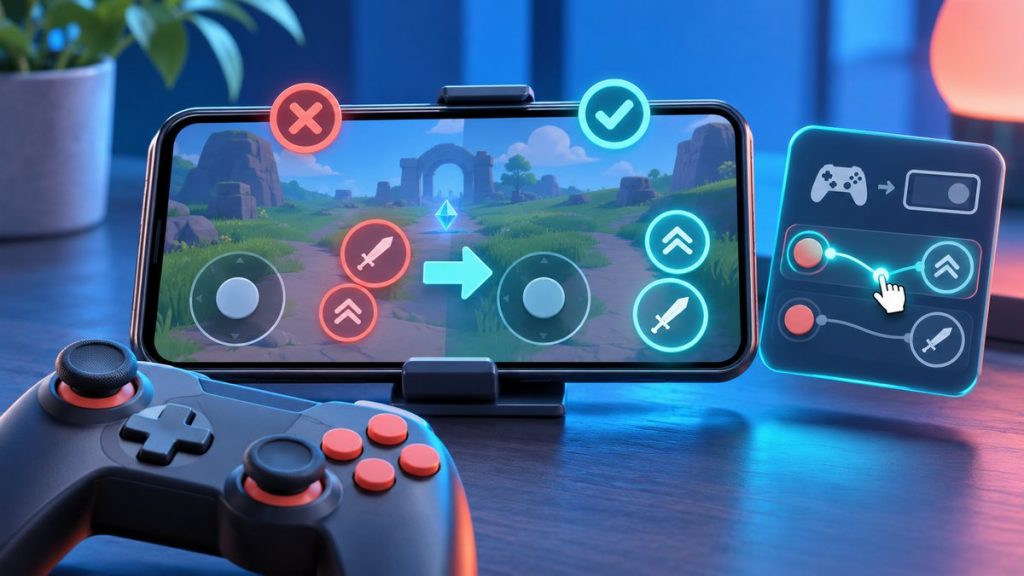
Wrong buttons can result from unsupported controllers, Android versus iOS mode, custom mapping, accessibility software or a stale Bluetooth pairing.
Short answer: Confirm official controller support, switch to the documented controller mode and reset only the game’s controller layout.
Check the likely cause first
- Test the controller in system settings or another supported game.
- Read the manufacturer’s mode indicator and pairing instructions.
- Check for an in-game custom button profile.
Fix it in the safest order
- Charge the controller and restart both devices.
- Forget and re-pair it in the documented platform mode.
- Reset the in-game controller profile after taking a screenshot.
- Update controller firmware using only the maker’s official app or desktop tool.
Before changing storage, account or network settings, confirm that the game came from its official store listing. WP Phone does not recommend modified APKs, unofficial top-up pages or account sellers.
How to confirm the fix
Use the game training mode to test every button, stick, trigger and menu action.
What not to do
- Do not install unknown key-mapper apps that request accessibility control.
- Do not flash firmware for a similar model.
When to contact support
Contact the game developer if the controller works system-wide but its official in-game profile remains wrong.
Use the official game directory to verify download routes, and review the safe download checklist before reinstalling.