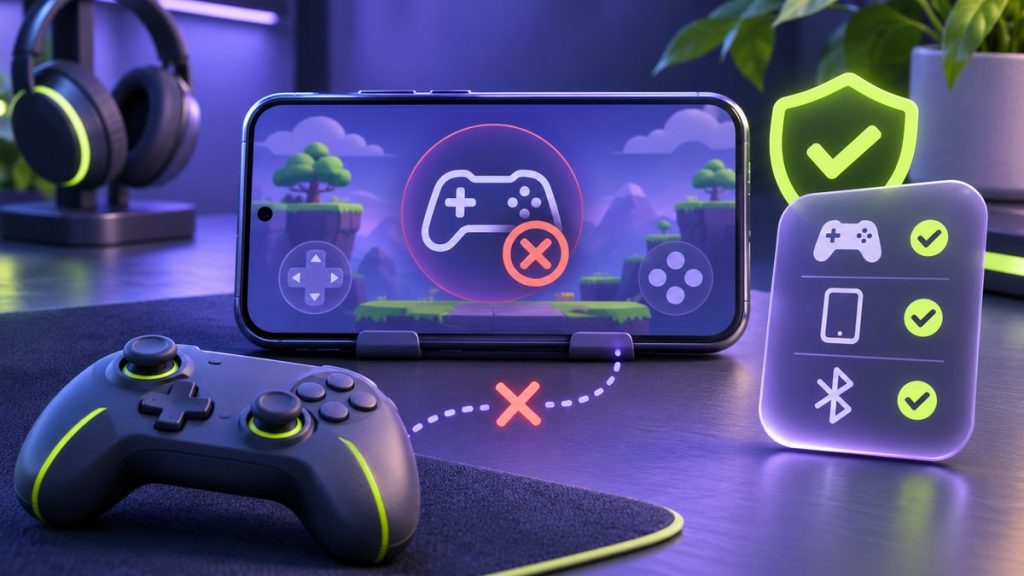
Bluetooth pairing alone does not prove that a mobile game supports a controller. The game must implement controller input, the accessory must expose a compatible mode, and it must be actively connected to this phone rather than another host. Verify support before buying an adapter or remapping application.
Confirm that the specific game supports controllers
Check the publisher’s official FAQ, store description and in-game Controls menu. Support can differ between Android and iPhone, and some games enable a controller only inside a match rather than on menus. Do not assume that PC or console support carries over to mobile.
If the developer lists only certain models, use that list. An unsupported controller may pair successfully but provide no usable input.
Charge, reconnect and stop automatic switching
Charge the controller and disconnect it from a console, PC or tablet that may reclaim the connection. Remove only that controller from the phone’s Bluetooth settings, restart both devices and pair again using the manufacturer’s documented mobile mode.
Accept a pairing request only for the device in your hand. Unexpected Bluetooth prompts should be declined.
Test at the operating-system level
On iPhone, compatible controller buttons and profiles can be reviewed in Settings, General, Game Controller. Apple documents supported PlayStation, Xbox and MFi devices, but availability depends on software and model. On Android, use the game and controller makers’ supported-device information.
A browser gamepad test from an unknown site is unnecessary. It may request extra permissions or display misleading compatibility claims.
Remove remappers and overlays from the test
Key-mapping, macro and accessibility overlays can conflict with native controller input and may violate a competitive game’s rules. Disable or remove them, then test the unmodified game from the official store.
If buttons work but are mapped incorrectly, see our controller mapping guide; that is a different symptom from no detection.
Check wired adapters and power requirements
For USB controllers, use a manufacturer-approved adapter and confirm that the phone supports the required connection. Some controllers draw more power than a phone port supplies. Stop if the connector or device becomes hot.
Do not force a plug, use a damaged cable or rely on an unpowered chain of hubs. Test one direct connection where the maker supports it.
Safe checks before reinstalling
Confirm that game progress is linked to the publisher account, Game Center, Google Play Games or another documented cloud-save system. Take screenshots of the player ID and account binding without exposing passwords, recovery codes or payment details. A reinstall can remove local saves, downloaded resources and custom settings.
Use only Google Play, Apple App Store or the developer’s official download channel. Do not install a modified APK, cracked build, “repair pack” or unofficial resource file. These files can steal accounts and are not a safe fix for a broken installation. On a managed phone, follow the organisation’s app policy.
Philippines network and account notes
For a controlled test, use a stable home Wi-Fi connection or a reliable mobile signal and avoid switching between Wi-Fi and cellular data during a download or match. Check the game publisher’s official service-status or social channel for a regional outage. Data use can be large, so review your Philippine carrier allowance before downloading resources over mobile data.
If the issue occurs only on one account, record the server or region, game version, phone model, OS version and time in Philippine Time. Send those details through the publisher’s in-game support or official help centre. Never give support staff your password or one-time code.
Official references
Reviewed: 10 October 2026. Controls and compatibility vary by game, device, store region and software version.