
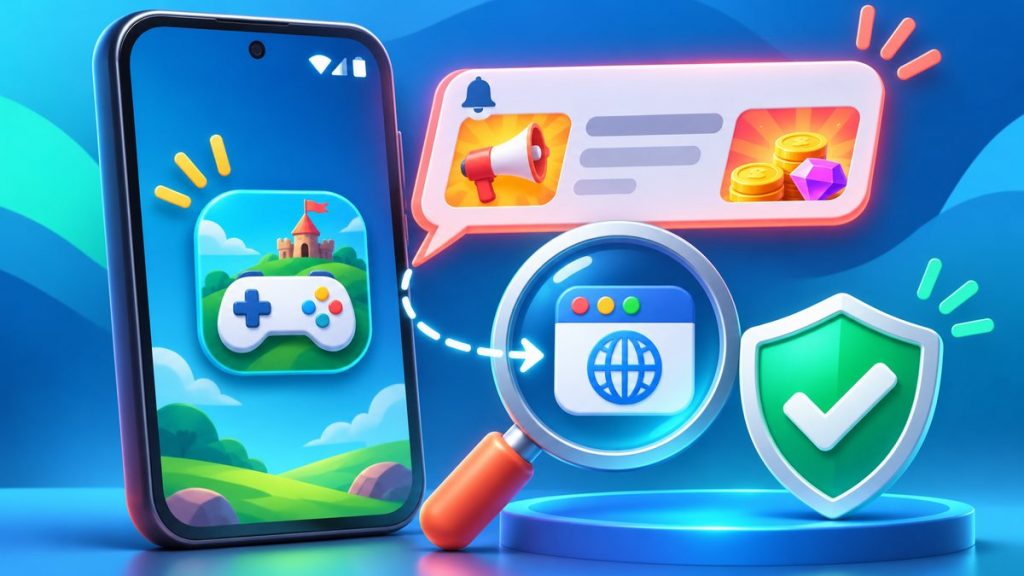
An ad appearing after you leave a mobile game is not proof that the game caused it. It may be a notification from that game, a website allowed to send notifications, or another recently installed app. Identify where it came from before clearing data or removing a game with an unbacked-up save.
Trace one ad safely
- Do not tap the ad. Note whether it appeared as a notification, a browser tab, or a full-screen overlay. Take a screenshot without opening its link.
- Check the notification sender. On Android, long-press a notification to see the sending app, or review recent notification history if your phone offers it. If the sender is a game, consider turning off that app’s promotional notification category while keeping useful alerts you want.
- Review browser site notifications. A website can send an ad-like alert even when the game is closed. Check the browser’s site notification permissions and remove unfamiliar senders.
- Look at recently installed apps. If a full-screen ad appears over unrelated apps, review what was installed or updated around the time it began. Uninstall only the app you can identify as the source; avoid random cleaner apps.
- Use built-in protection. Keep Android and the official app store updated, run the phone’s built-in security scan, and install game updates from official store links. If an app asks for “display over other apps” or accessibility access, review why it needs that permission before allowing it.
For more on unusual overlay permission requests, read our Android game helper overlay checklist. If you installed a game from a file outside an official store, our unknown-app installer guide explains the risks and safer recovery steps.
Common questions
Should I clear the game’s storage? Not as a first step. That can erase guest progress and may not stop ads sent by a browser or another app.
Is every ad malware? No. Some are ordinary promotional notifications. A full-screen ad over unrelated apps deserves closer inspection, especially after a new install.