
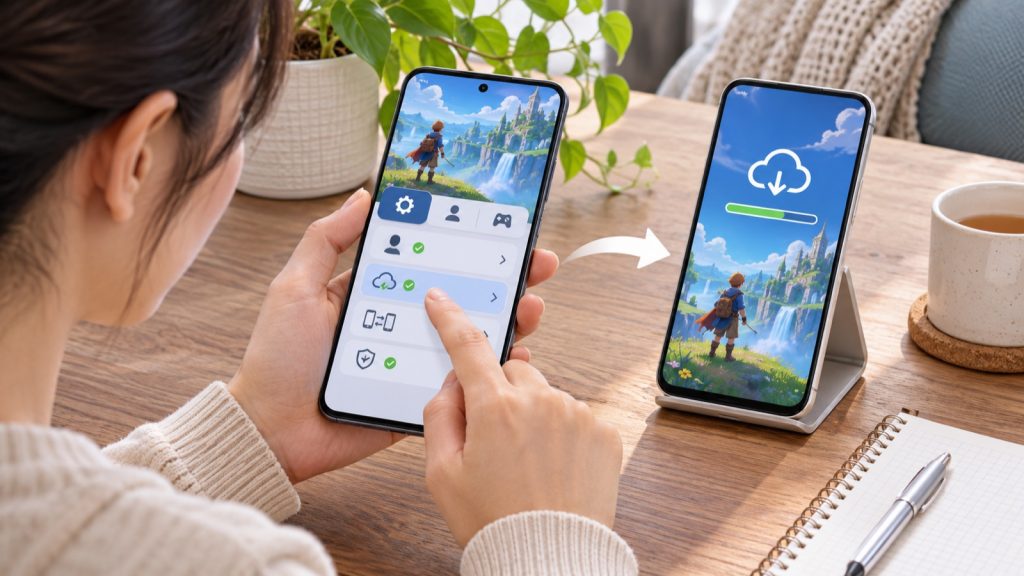
Before changing phones, confirm where each mobile game’s progress is stored. A game may save on its own server, through a linked game account, through a platform service, or only on the device. Seeing the app icon on the new phone does not prove that its save will return. Keep the old phone and its working game installation until you have opened the game on the new phone and checked the actual progress.
Record the account used by the game
- On the old phone, open the game and find its account, settings, or support screen. Write down the player ID, server or region, and the sign-in method shown there. Do not share passwords or recovery codes in screenshots.
- Check whether the game says the account is linked and whether a recent save or sync time is displayed. If there is a manual sync button, use the game’s own instructions and wait for completion before leaving the app.
- Take a screenshot of your in-game level or inventory for comparison. This is evidence of progress, not a backup by itself.
Check the platform service
On Android, confirm which Google account is in use and whether the game supports progress linking. Google’s Play Games progress guidance explains that linked progress can follow the Google account across devices, but the exact behavior depends on the game. On iPhone, Apple’s Game Center and iCloud guidance says supported games can keep progress current across devices when the correct Apple Account and settings are used. Do not assume every game supports either service.
Test on the new phone before resetting the old one
Install the game from the official app store and sign in using the same game account, platform account, and server or region. Let any in-game download finish, then compare the player ID, level, and recent activity with your notes. If the game asks you to choose between a local and cloud save, stop and read both timestamps and progress details before choosing. Our cloud-save conflict checklist explains what to inspect first.
If progress is missing, do not create a new permanent account or repeatedly unlink the old one. Return to the old phone, verify that it still shows the expected progress, and use the game’s official support channel with the player ID and any purchase receipt you already own. Avoid third-party transfer tools that ask for your password. Only erase or trade in the old phone once the new phone shows the correct game save and you have confirmed other important data has transferred too.