
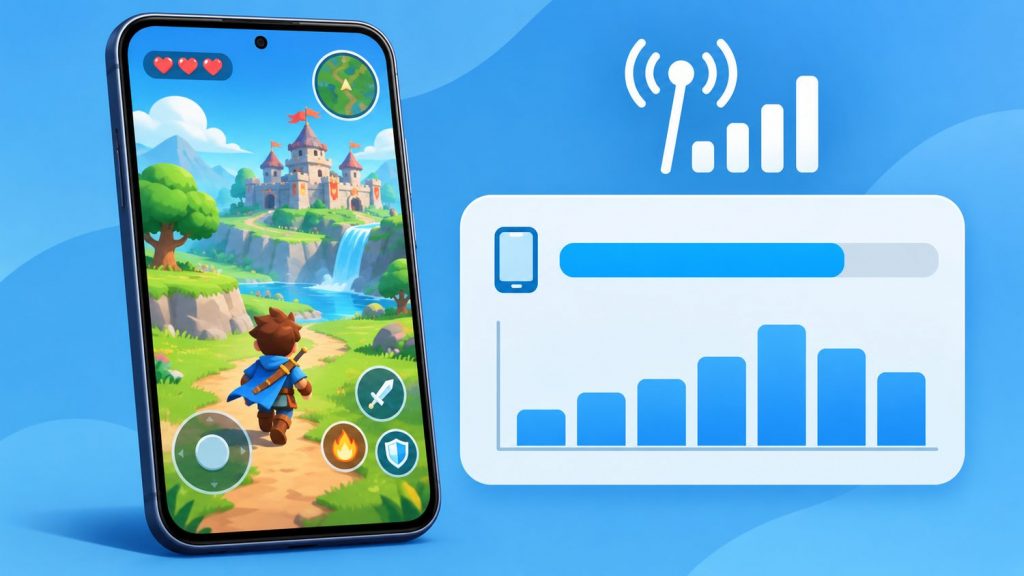
To see how much cellular data a mobile game uses, check the phone’s per-app data screen before and after a normal play session. The number is an estimate of the app’s traffic over the selected period, not a promise that every future session will use the same amount. A game update, voice chat, advertising or background download can change the result.
On iPhone
- Open Settings, then Cellular. If you use more than one SIM, check which line supplies cellular data.
- Scroll to the list of apps and find the game. Note its current cellular usage and the period shown. Apple’s cellular data guide explains how to view per-app usage and turn cellular data off for an individual app.
- Play for a short, ordinary session on cellular data, then return to the same screen and compare the number. Do not reset statistics unless you intentionally want a fresh period for all apps.
On Android
Menus vary by phone maker. On a Pixel phone, open Settings, Network & internet, SIMs, then App data usage. Select the time period and locate the game under the graph. Google’s Pixel mobile data guide describes these steps and notes that carrier measurements may differ from the phone’s estimate. On another Android phone, search Settings for “app data usage” and consult that manufacturer’s help if labels differ.
Avoid surprise usage
Use trusted Wi-Fi for large game downloads and updates when practical. If your data plan is limited, check the carrier’s own usage meter or account app for billing totals; your phone’s counter may cover a different time period. Be especially careful when roaming because costs depend on the carrier plan. If the game has an in-app option to download extra assets only over Wi-Fi, review it before enabling mobile data for a long session.
Turning cellular data off for a game can make it stop connecting away from Wi-Fi. If a match drops when the phone switches between networks, read our Wi-Fi to mobile-data switch guide before changing settings mid-match. Repeat the measurement after an update if your usage changes sharply, and avoid granting unnecessary permissions to third-party “data saver” apps.